

Manual Segments
Build static, hand-picked lists of users by username
Manual segments let you freely group users in encatch. You add and remove users yourself. The list stays fixed until you change it. Manual segments do not update automatically based on user data.
A username is the same unique identifier used in identifyUser. In the dashboard, manual segments appear with a Manual badge.
Use when: You need a static, hand-picked list (e.g., beta testers, VIP users, custom cohorts for one-off surveys).
Workflow Overview
- Open Segments from the sidebar
- Click New Segment and choose Manual Segment
- Click Create segment to create the empty segment
- Add users by username import or from the member table
- View, search, add, or remove users in the segment
Step 1: Open Segments
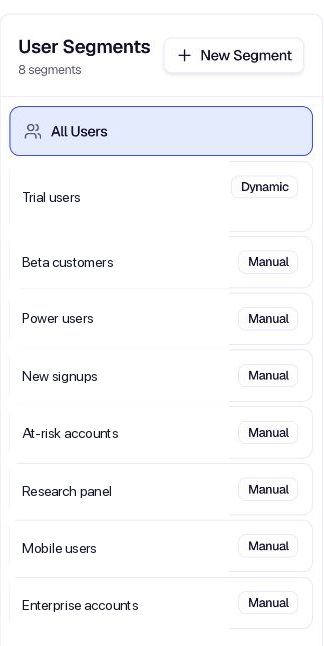
In the encatch dashboard, click Segments in the left sidebar. The Segments page shows your existing segments, including All Users. New Segment is on All Users.
Step 2: Create a New Segment
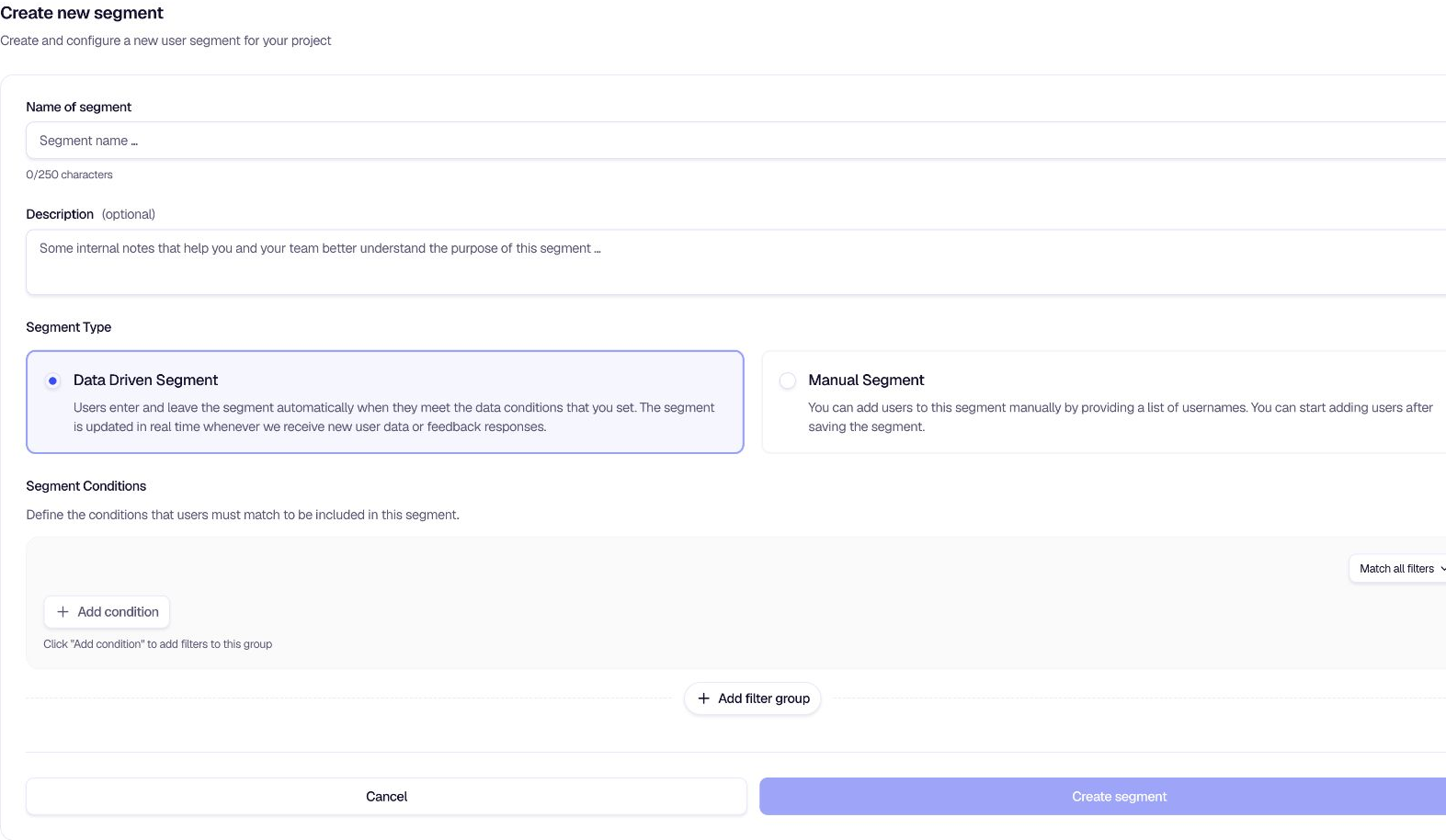
Click New Segment to open the Create new segment form. Configure:
- Name of segment: A label for the segment (e.g., "Beta testers"). Max 250 characters.
- Description (optional): A short description of the segment's purpose (e.g., "Users invited to beta product feedback").
- Segment type: Select Manual Segment.

Step 3: Save the Segment
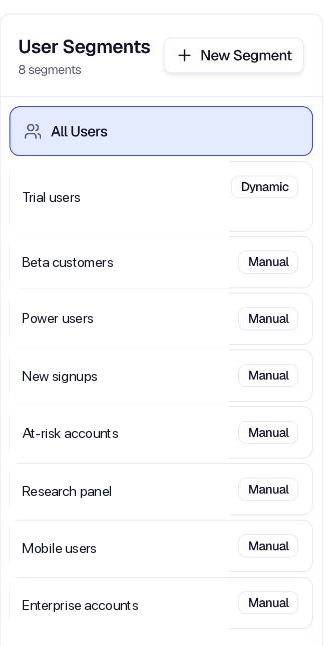
Click Create segment (or Save for edits) to create the segment. It will appear in the Segments list with a Manual tag. You can start adding users after saving.
Step 4: Add Users
There are two ways to add users to a manual segment.
Import users by username
- Click the segment in the list to open it.
- Click Add users in the segment header.
- In the Add Users to Segment modal, enter usernames separated by commas or new lines.
- Follow these rules:
- No spaces in a username
- Max 255 characters per username
- Max 1000 usernames per submission
- Users that don't exist are created automatically with that username
- Click Add Users (or Add N User(s)) to confirm.
The Add Users modal matches users by username (user_name), not by the Email trait. If you enter john@example.com, encatch looks for a user whose username is exactly john@example.com. It does not look up a user whose email trait is john@example.com. Use each person's actual username.

The modal validates each username before the users are added and updates the confirmation button to show how many valid users were detected.
Add users from the member table
You can also add users from any segment or All Users list:
- Open a segment (or All Users) and select users in the member table.
- Open the Actions menu.
- Choose Add to segment.
- Select an existing manual segment.
This is useful when you find users while browsing and want to add them without typing usernames. The target must be a manual segment. You cannot add users into a data-driven segment this way.
Step 5: View and Manage Members
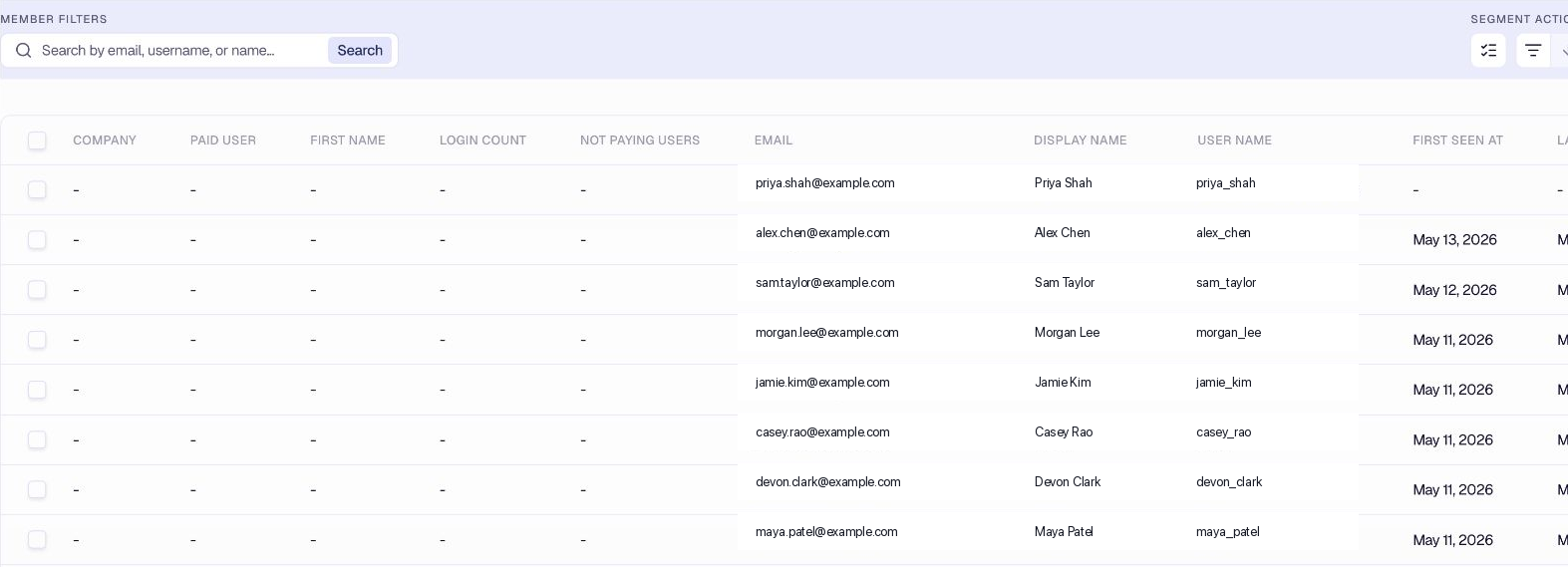
The segment page shows a table with default columns such as Username, Display Name, Email, and Feedback Views Count. Use column settings to show or hide other trait columns.
Use the search bar to find users by email, username, or name. Use Sort by and filters to organize the list.
Click Show info to view the segment's name, description, member count, created/updated timestamps, and last calculation time.
Bulk actions
Select users in the table, then use Bulk Actions:
- Remove from segment: Remove selected users from this manual segment. This does not delete them from the project.
- Add to segment: Copy selected users into another manual segment.
- Delete Users: Remove up to 1,000 selected people from the project. In Delete users, under Feedback responses, choose Keep responses, remove the user or Delete their responses too. Job status → Deleted users shows who requested it and how far it has gone. Undo delete is available for 5 minutes, before removal starts. A failed request has Retry there.
Manual vs data-driven bulk actions
| Action | Manual | Data-driven | All Users |
|---|---|---|---|
| Remove from segment | Yes | No | No |
| Add to a manual segment | Yes | Yes | Yes |
| Delete Users (from project) | Yes | Yes | Yes |
Data-driven segment membership is controlled by conditions. You cannot remove users manually from a dynamic segment. You can still copy selected users into a manual segment, or delete them from the project.
Update and delete a manual segment
Edit name or description: Open the segment dropdown and choose Edit segment.
Delete segment:
- Open the segment dropdown and choose Delete segment.
- If the segment is used by a feedback form (or another consumer), deletion is blocked. You will see which items reference the segment. Remove it from those places first.
- If the segment is not in use, type the segment name to confirm deletion. The segment disappears at once. Its members are removed in the background, usually within 15 minutes.
Summary
| Step | Action |
|---|---|
| 1 | Open Segments from the sidebar |
| 2 | Click New Segment and choose Manual Segment |
| 3 | Enter name and optional description |
| 4 | Click Create segment (or Save) |
| 5 | Add users by username import or from the member table |
| 6 | View and manage members; use bulk actions as needed |
Related
Was this page helpful?