

Dashboard Presets
Save and reopen per-form analysis with its filters, comparisons, chart settings, and report views
Dashboard presets save a useful per-form analysis configuration so you or a teammate can reopen it without rebuilding the view. A preset stores configuration, not a copy of the responses, so it always runs against the data currently available to you.
Presets are available for Overview, Responses Summary, and Individual Responses.
What a preset saves
Every preset keeps the date range, property filters, selected form version, and the form and report type it belongs to. Additional settings depend on the report:
| Report | Additional saved settings |
|---|---|
| Overview | Question-answer filters, comparison range, trend unit, and chart color theme. |
| Responses Summary | Question-answer filters, comparison range, trend unit, selected chart measures, chart color theme, drill-down report views, custom view labels, and the active report view. |
| Individual Responses | Question-answer filters used to narrow the response list. |
Save the current analysis
- Open Overview, Responses Summary, or Individual Responses for a form.
- Configure the date range, filters, version, and any report-specific options you need.
- Open Dashboard presets in the report actions.
- Select Save current as new preset.
- Enter a name that describes the audience or decision, then select Save preset.
For example, Enterprise onboarding — last 30 days is easier to reuse than a generic name such as Report 1.
Apply, update, or restore a preset
Select a saved preset from Dashboard presets to apply its configuration. When you change an applied preset, Encatch marks the view as modified.
- Select Update preset to replace the saved configuration with the current state.
- Restore the preset to discard unsaved changes and return to its saved state.
- If you select another preset while the current one has unsaved changes, confirm whether those changes can be discarded.
In Responses Summary, reopening a preset can reconstruct the saved drill-down tabs and return to the report view that was active when the preset was saved.
Find and manage presets
Open Dashboard Presets from the project sidebar to search by preset or form name, filter by report type, switch between grid and list views, or narrow the list by form collection.
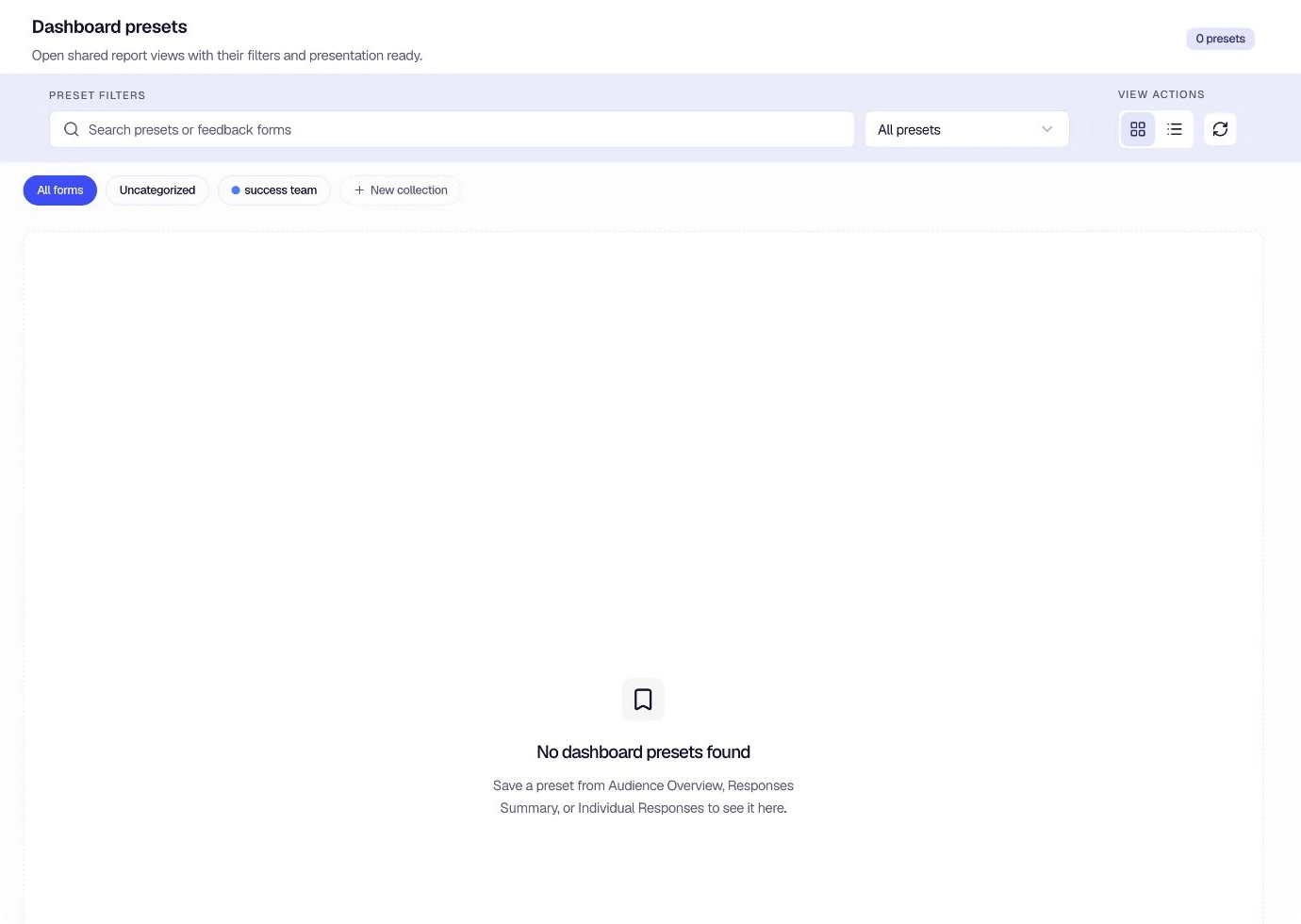
Select a preset to open its form report with the saved configuration. The report still respects your current permissions and access to the underlying form.
Keep presets useful
- Use names that identify the audience, purpose, and time window.
- Save separate presets for recurring team reviews or different investigation paths.
- In Responses Summary, rename drill-down report views before saving when their automatic titles need more context.
- Update or retire presets when the form or reporting workflow changes.
Was this page helpful?