

Feedback Links
Share feedback forms via shareable links
Shareable links let you send your feedback form to anyone, even if they're not using your app. They're useful for support follow-ups, email campaigns, beta tester outreach, QR codes, and other external distribution channels.
How to create a feedback link
- Open your feedback form and go to Distribution → Link & Email → Links.
- Enable Link & Email.
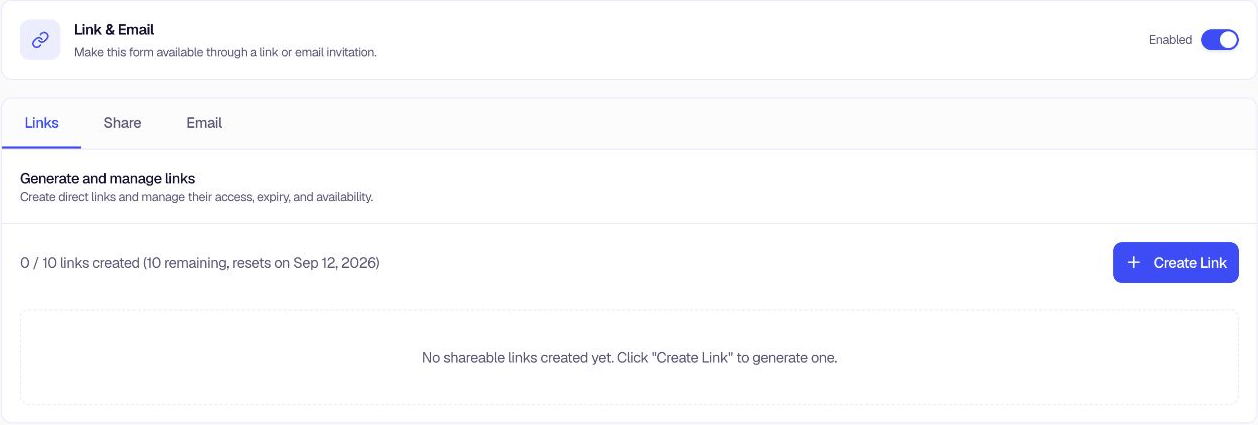
- Click + Create Link to open Create Shareable Link.
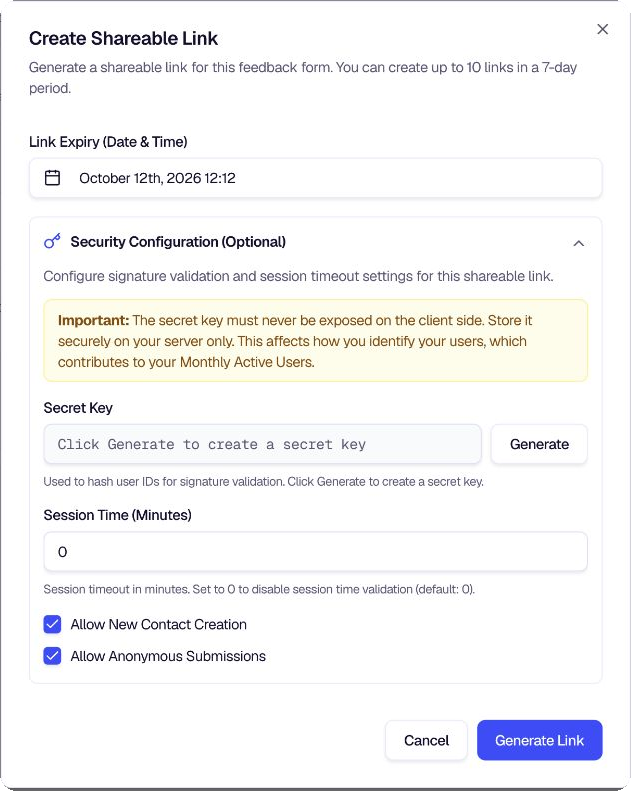
- Enter a Link name. You can change it later from the link details.
- Set the Link Expiry (Date & Time).
- Expand Security Configuration (Optional) when the link needs signed-user validation or session controls. You can:
- Generate a secret key for hashing user IDs on your server. Never expose this key in client-side code.
- Set Session Time (Minutes). Use
0to disable session-time validation. - Allow or block new contact creation.
- Allow or block anonymous submissions.
- Click Generate Link to create the link. You can create up to 10 links in a 7-day period.
- Copy and share the link through email, chat, social media, a support ticket, or another channel.
Saved share templates are on the same Links tab. A template stores the contact, context, and response variable names for a personalized share URL, so you can reuse that setup across recipients and links.
When you delete a link, Encatch lists any saved Share and Email templates that still use it. Those templates show Link unavailable until you choose another link.
To build provider-ready HTML for email campaigns, see Email Surveys.
To populate answers when someone opens the link, see Advanced Configuration.
Was this page helpful?